

Backup and restore
The Backup and restore page shows all backups of an administration in a vertical timeline, grouped by date. Backups are created automatically at key moments.
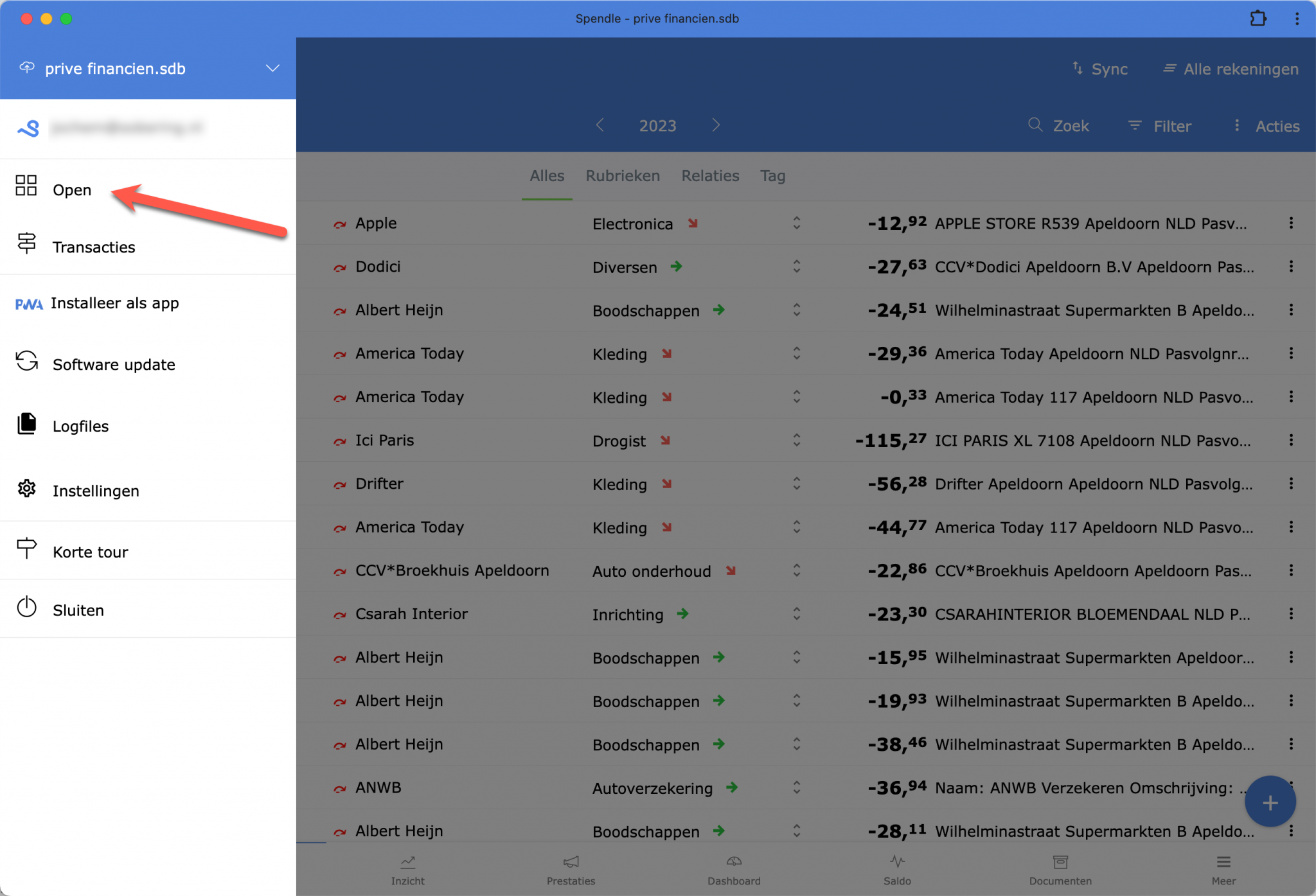
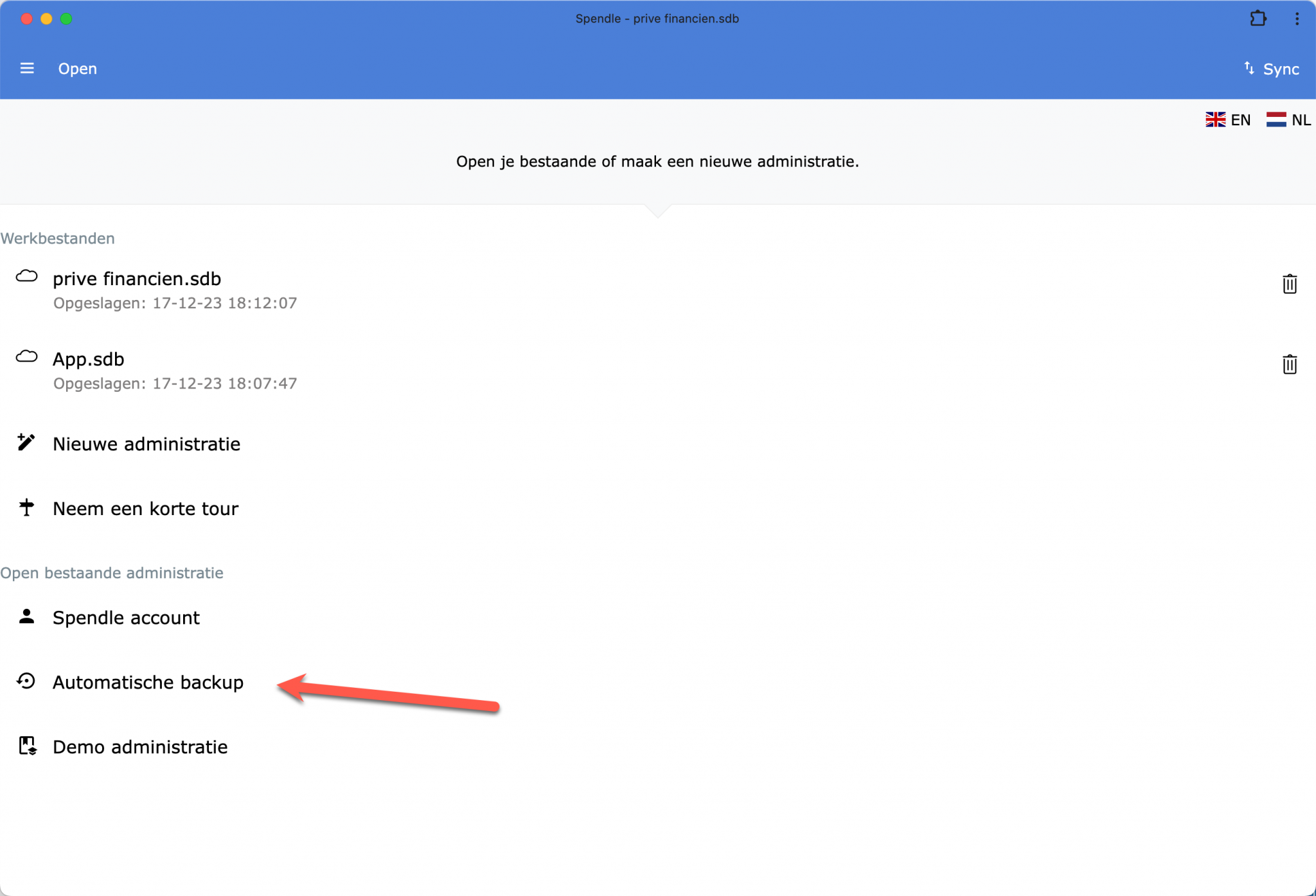
Automatic backups
Section titled “Automatic backups”Backups are stored locally in the IndexedDB storage of your browser on the device where you work. Spendle creates them in the background at key moments:
- When opening an administration — once per day.
- Before restoring an earlier backup — the current version is secured first.
- When changing the administration password.
Each automatic backup includes a description of why it was created, such as Daily backup on load.
Spendle keeps a maximum of 10 backups per administration by default; older ones are removed automatically. Pinned backups (see below) do not count towards this maximum and are always retained.
Creating a manual backup
Section titled “Creating a manual backup”At the top of the Backup and restore page there is a Create backup now button. A custom description can be added when creating it, for example Working version or Before year-end closing. Manual backups are distinguished in the timeline with a separate label and are automatically pinned.
Editing descriptions
Section titled “Editing descriptions”The Edit button on each backup can be used to add or change a description afterwards. Backups to which a description has been added after creation are also automatically pinned.
Pinning backups
Section titled “Pinning backups”A pin icon is shown next to each backup. Click the pin icon to pin a backup. Pinned backups do not count towards the maximum of 10 and are always retained.
Restoring a backup
Section titled “Restoring a backup”Each backup in the timeline has a Restore button. After clicking, a confirmation window appears showing the administration name, the timestamp and any description. Before the actual restore, a backup of the current version is always created first, so you can switch back later.
After restoring, the working file on this device is up to date but the online version in your Spendle account has not been touched. Click Synchronise yourself to push the restore upstream. Spendle detects that the online version is newer and asks:
Your online Spendle administration is newer than your working file with changes. What would you like to do?
Choose Overwrite online version to save the restored backup as the new online version.
Deleting a backup
Section titled “Deleting a backup”Backups that are no longer needed can be deleted manually using the Delete button. Spendle always asks for confirmation.
Context: which backups are shown?
Section titled “Context: which backups are shown?”The Backup and restore page adapts based on context:
- From the menu with no open administration — all backups of all administrations are shown.
- From within an open administration — only the backups of that administration.
Backup metadata
Section titled “Backup metadata”The timeline shows the following for each backup:
- Timestamp
- Administration name
- Type: manual or automatic
- Version number (if available)
- Description (if provided)
- Pin status
Downloading a backup to a file
Section titled “Downloading a backup to a file”Local backups are stored in the IndexedDB of your browser and remain there unless exported to a file. For an external backup on USB, an external drive or cloud storage, use the export function:
- Export administration — an encrypted
.sdbbackup of your complete administration. See Export administration.