

Finding your way
New to Spendle? This page shows where everything is.
Basic terms
Section titled “Basic terms”- Spendle account — your login: e-mail address and password. See Create an account.
- Administration — your household ledger. One Spendle account can hold several administrations.
- Working file — your administration as stored on this device. This is why Spendle also works without internet.
- Synchronising — Spendle stores your changes in your Spendle account and retrieves changes from your other devices. That way you have the same administration everywhere. See Synchronising.
- Account — a bank, savings or cash account.
- Profile — a group of accounts. The profile determines which accounts you see.
- Bank connection (PSD2) — Spendle retrieves your transactions and balance directly from your bank. See Connect a bank.
- Balance — the amount in your accounts. On the dashboard, the change in balance over a period is called cashflow.
- Result — what you receive in a period minus what you spend. Money you transfer between your own accounts does not count. See Balance versus result.
More terms are listed in the Glossary.
Two passwords
Section titled “Two passwords”- Account password — used to log in. Forgot it? Then you reset it via your e-mail address. See Forgot password.
- Administration password — protects your household ledger. Only you know this password.
The start screen
Section titled “The start screen”You see this screen after logging in.
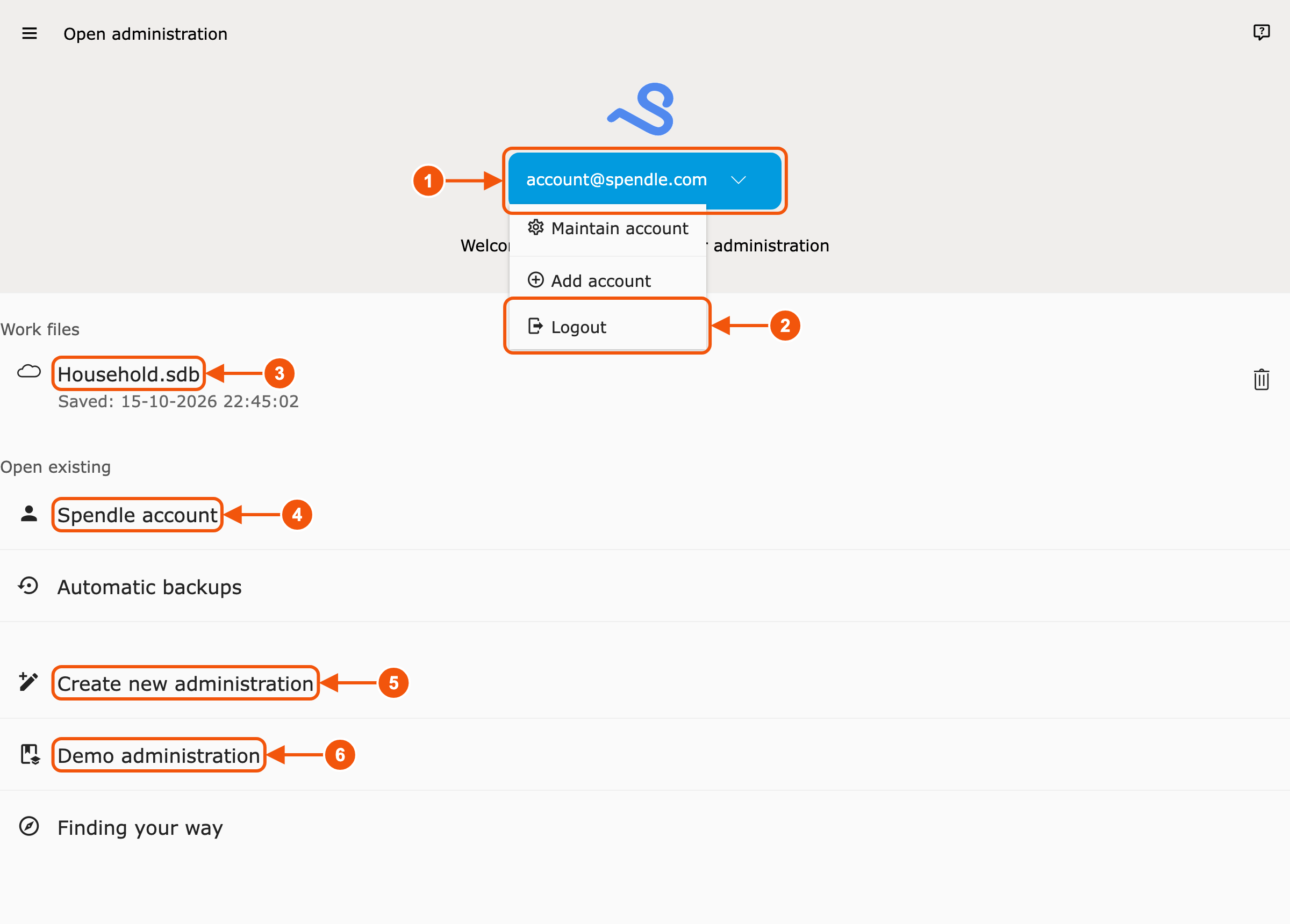
- Your Spendle account. Your e-mail address. If it says Logged off, you are not logged in. This is also where you switch accounts; see Switch between accounts.
- Logout. See Log out.
- Work files. Administrations already stored on this device. Click one to open it.
- Spendle account. The administrations in your Spendle account. Choose one to open it on this device.
- Create new administration. See Create an administration.
- Demo administration. Look around Spendle with sample data.
The main screen
Section titled “The main screen”You see this screen when an administration is open.
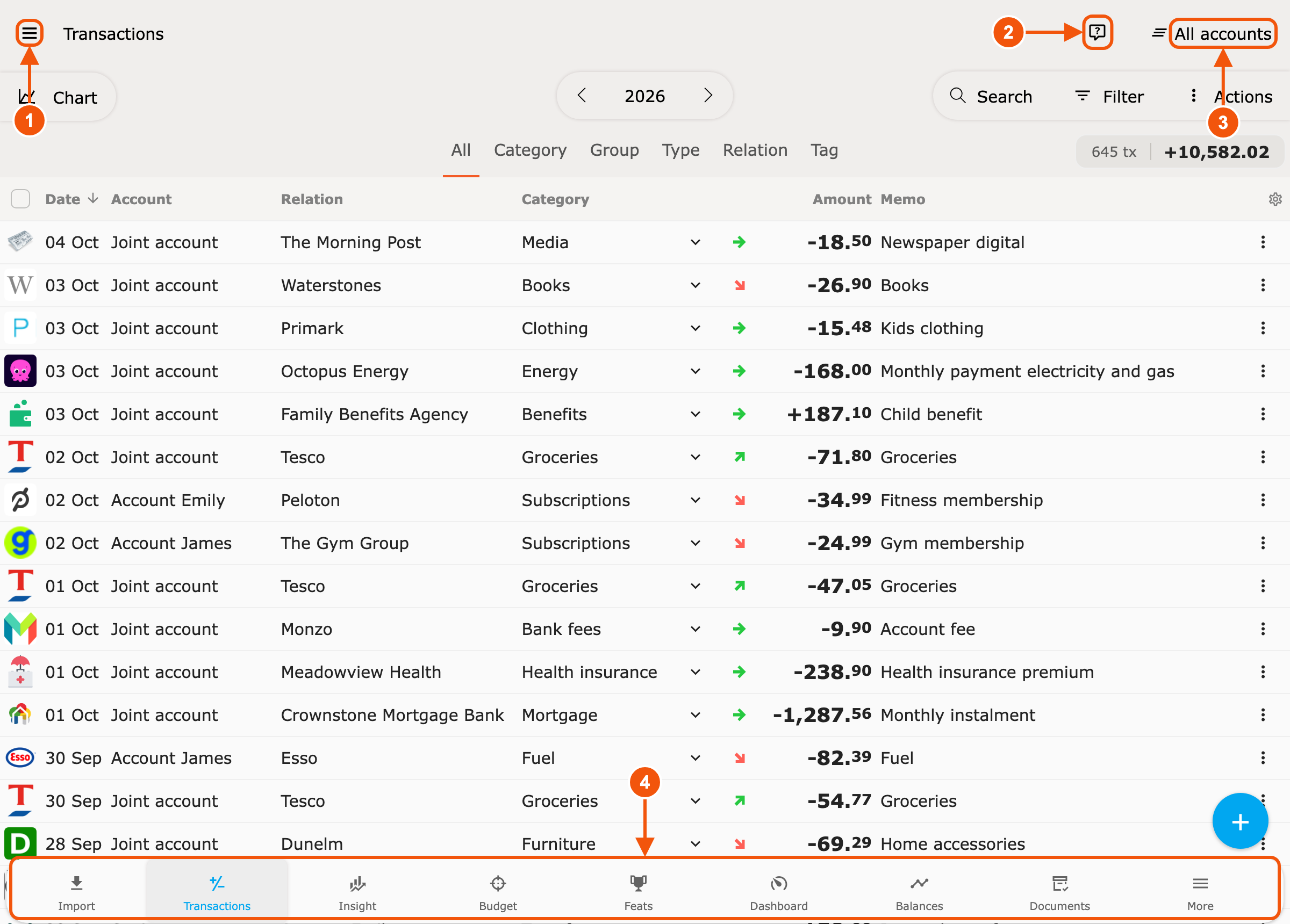
- Menu. Your administration, your Spendle account and the settings. See The menu.
- Help button. Opens the explanation for the screen you are on.
- Profile. Choose which accounts you see.
- Navigation bar. The sections of Spendle. More holds the rest.
The menu
Section titled “The menu”You open the menu at the top left, with the three lines.
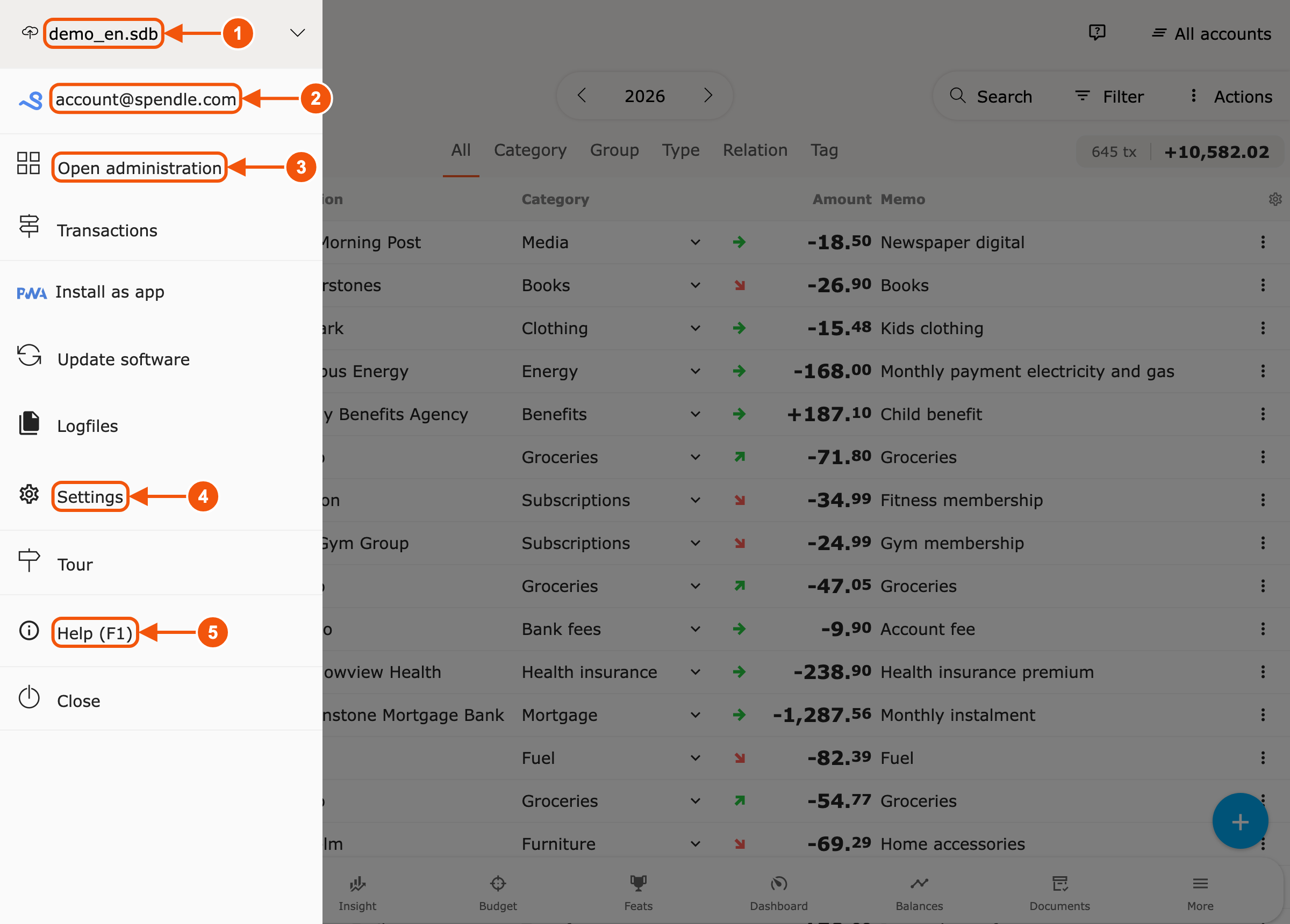
- Current administration. Click the name for the options of this
administration:
- Open other — open another administration.
- Save as — save a copy under another name.
- Backup — restore an earlier version. See Backup and restore.
- Get online version — retrieve the version from your Spendle account.
- Export to file — create a backup file.
- Export CSV — save your transactions as a CSV file. See Exporting an administration.
- Set password — change the password of the administration.
- Your Spendle account. Click your e-mail address for the account page. It shows your licence and bank connections, and has Logout, Change e-mail address and Remove Spendle account.
- Open administration. Back to the start screen.
- Settings. Language, theme, synchronisation and more. See Settings.
- Help. The explanation for the screen you are on. Also with F1.
At the bottom of the menu you also find Tour and Close.
Stopping and logging out
Section titled “Stopping and logging out”If you only want to stop for now, choose Close in the menu. You stay logged in. Logging out completely takes two steps; see Log out.