

Cash account
Not all transactions go through a bank. Cash, informal payments settled later, or a small kitty for the children — all of this fits in a cash account. This is an account managed entirely manually, without a bank connection or file import.
Creating a cash account
Section titled “Creating a cash account”A cash account can be created in two ways:
- Via the plus icon in the Balance tab.
- When adding a manual transaction, if no cash account exists yet.
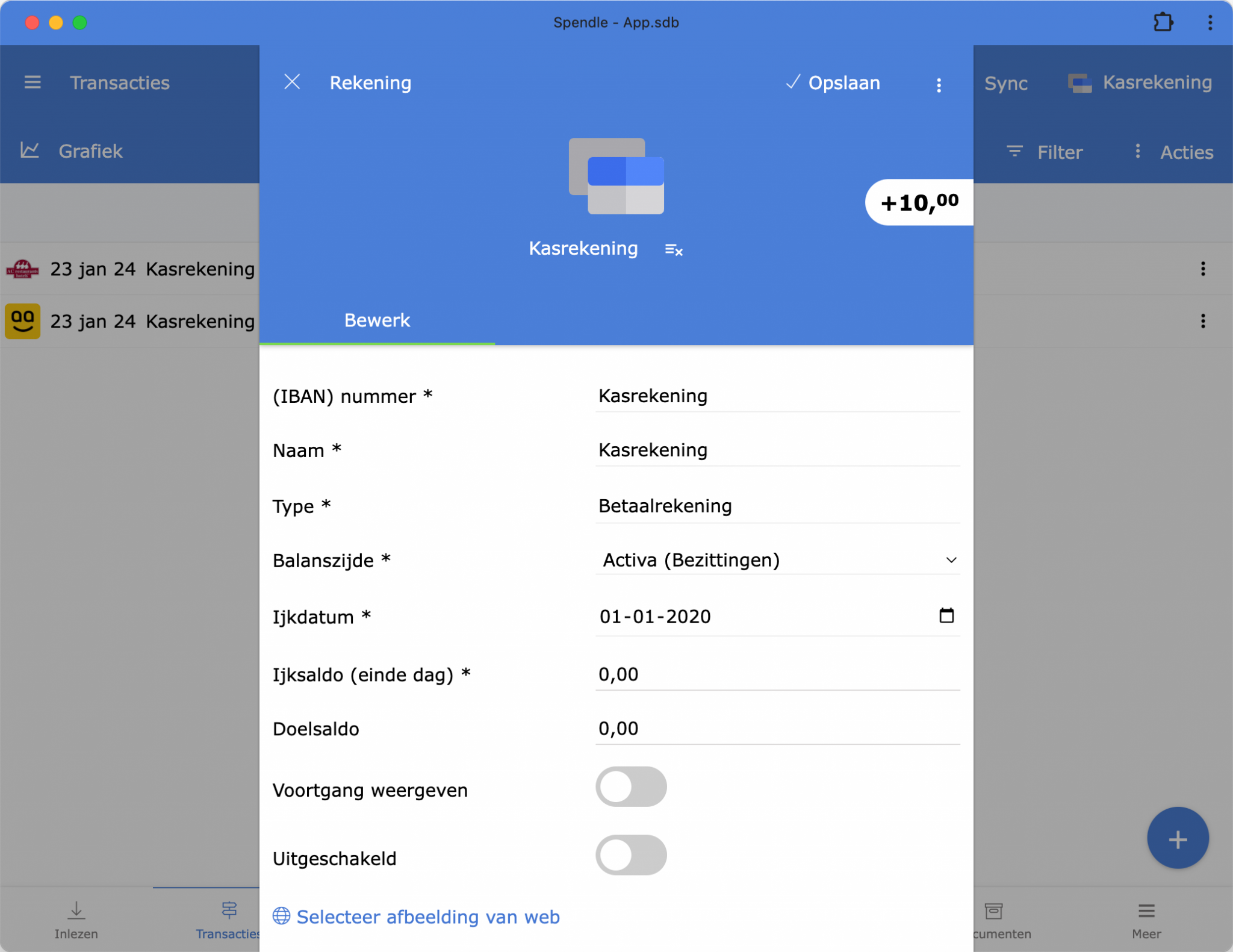
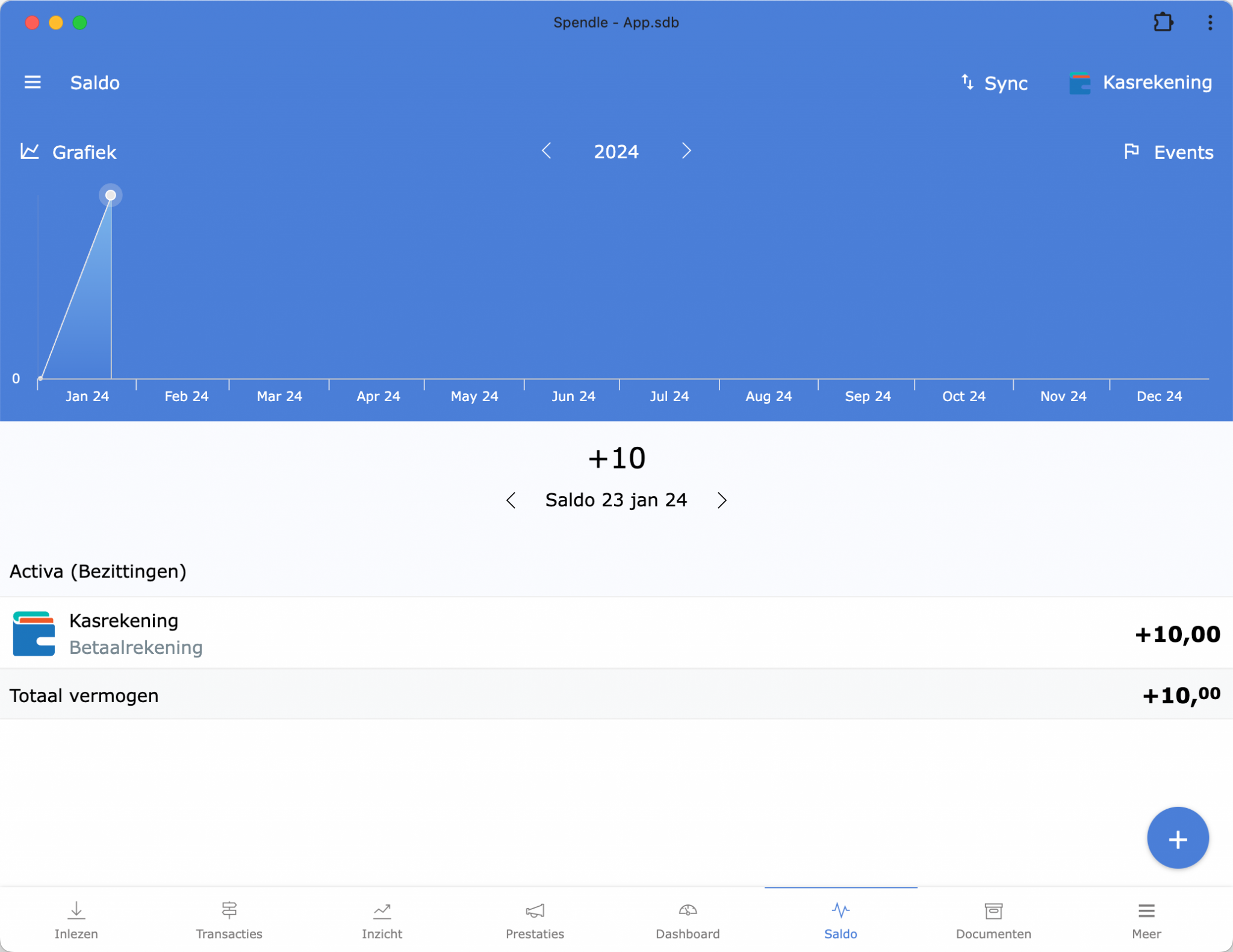
Click the information icon to the right of the account in the Balance tab to open the account details. Enter the reference date and the reference balance there — the reference balance is the balance at the end of the reference date. Spendle calculates the current balance and balance history from that point.
Entering transactions manually
Section titled “Entering transactions manually”In the Transactions tab click the plus icon at the bottom right, or use the shortcut Ctrl + I. Choose Add manual transaction, enter the account, date, amount, category and description, and save.
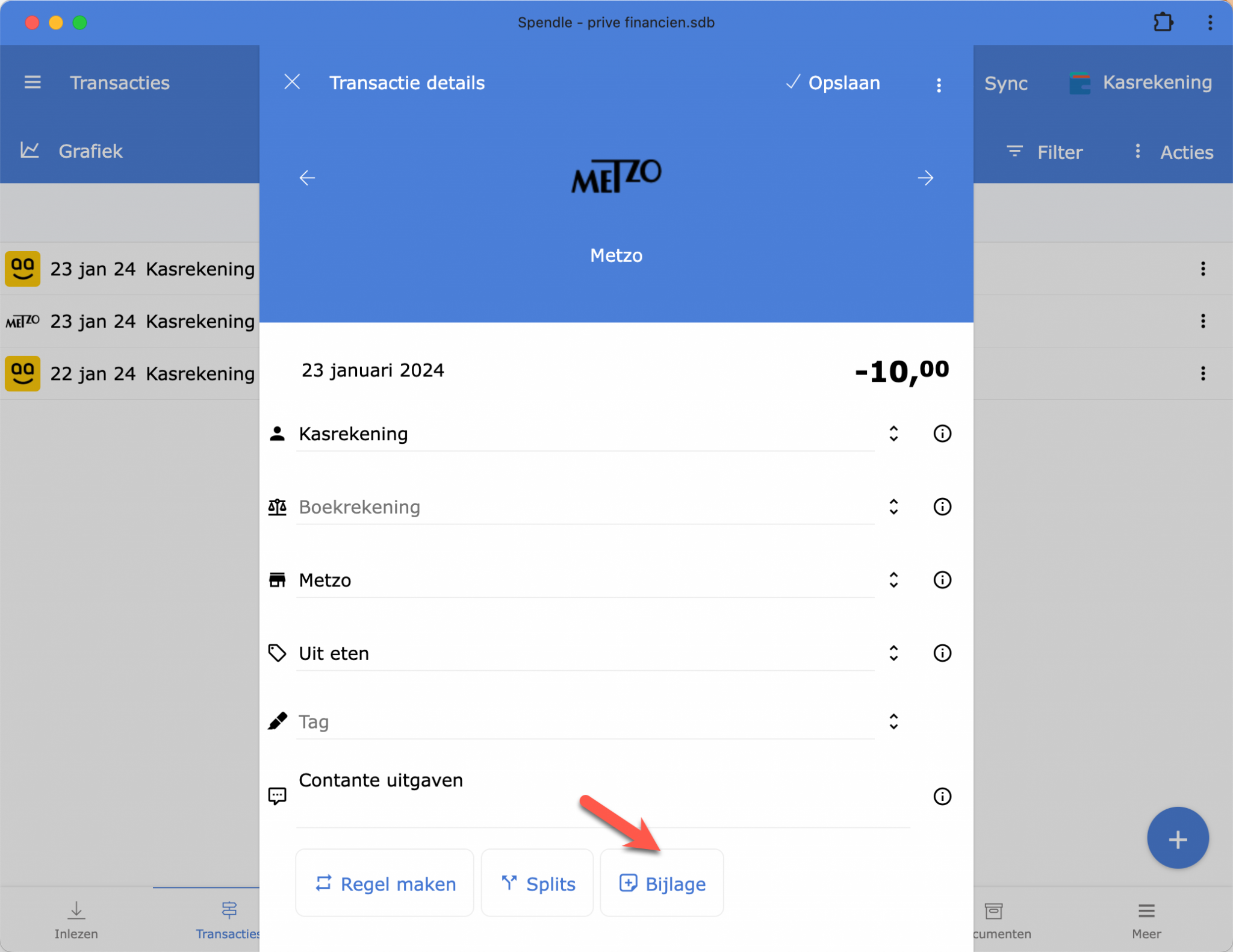
After saving, a photo of a receipt can optionally be attached via + Attachment — see Receipt photo.
Moving money from bank to cash
Section titled “Moving money from bank to cash”After a cash withdrawal, the withdrawal on the current account can be transferred to the cash account:
-
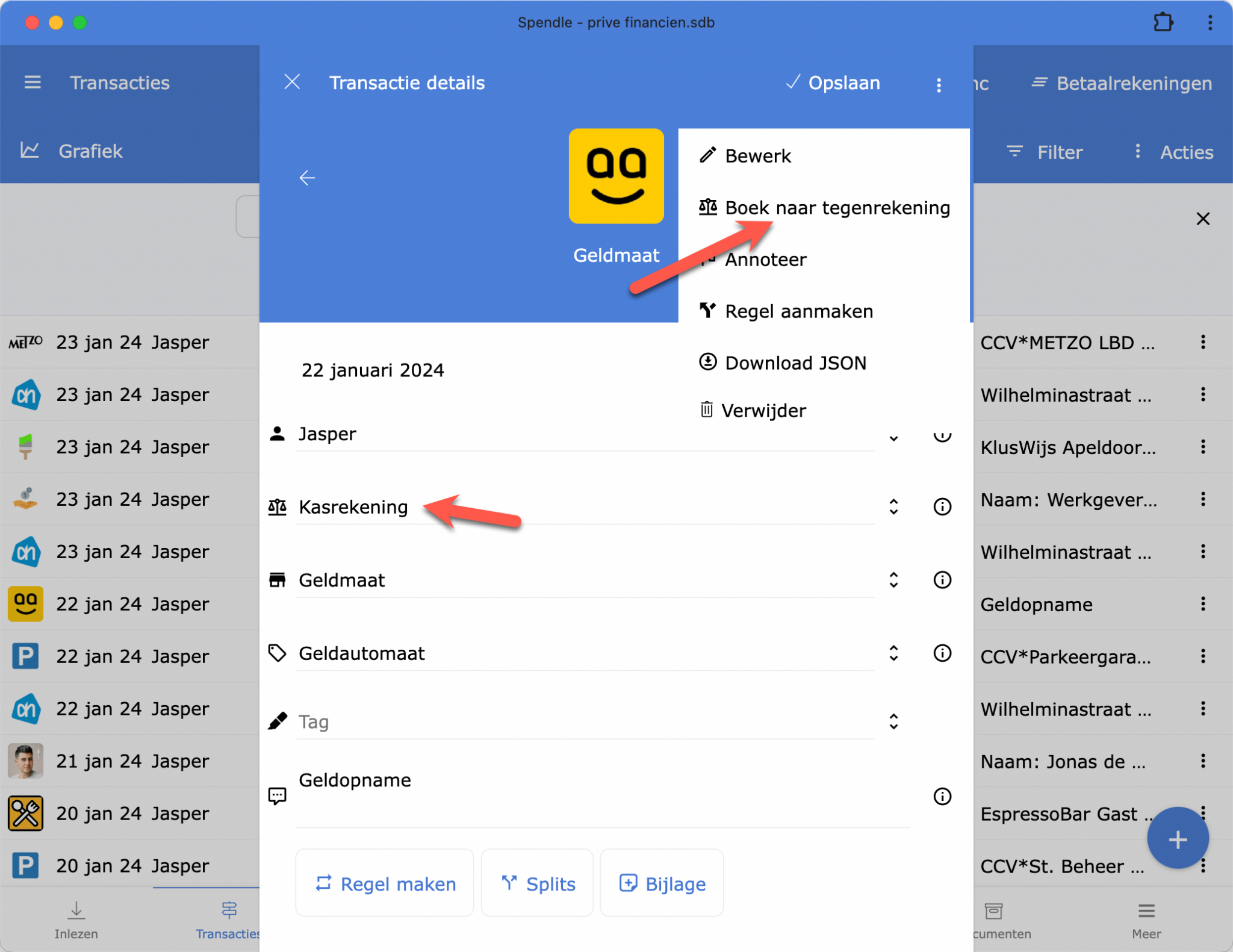
Open the withdrawal transaction on the current account.
-
Click the menu at the top right and choose Transfer to counter account.
-
Select the cash account as the counter account.
Spendle automatically creates a counter entry on the cash account. To do this automatically in future, create an action rule and enable the relevant option in the Settings screen.
Checking the balance
Section titled “Checking the balance”Count the physical cash regularly and compare with the Spendle balance. If there is a difference, enter a correction transaction (category Miscellaneous or Correction) to bring it back in line.