

Import CSV or Excel
No PSD2 connection, or do you want to add older transactions? Then you can import a transaction file from your bank.
Supported file formats
Section titled “Supported file formats”| Format | Extension | Details |
|---|---|---|
| CSV and Excel | .csv, .txt, .xls, .xlsx | The format of many Dutch and Belgian banks is recognised. |
| MT940 | .sta, .940, .txt | The file is recognised by its content, not by the extension. |
| CAMT.053 | .xml | Only booked transactions are imported. |
| OFX | .ofx, .qfx, .qbo | Version 1 (SGML) and version 2 (XML) are read. |
| QIF | .qif | The file contains no account number; Spendle asks for the account during import. |
MT940 and CAMT.053 files also contain the balance. When Spendle creates a new account during import, the reference balance is filled in from it. For an existing account, the reference balance remains unchanged.


Download the file from your bank
Section titled “Download the file from your bank”Log in to online banking and look for the option Download transactions or Export. Choose the desired period and download the file to your device.
How it works
Section titled “How it works”-
Open the Import tab in Spendle.
-
Drag the file into the application, or click Upload your transaction file here and select it.
-
Select the account if Spendle asks for one. This only happens when transactions in the file contain no account number. Choose an existing account or create a new one, select it and click Select in the top-right corner to continue.
-
Click Import. The transactions appear on the Transactions tab.
Link to online banking
Section titled “Link to online banking”Working with downloads regularly? Add a link to your online banking environment via Add bank > Link to online banking. From the Import tab you can then open the bank environment with a single click.
File not recognised?
Section titled “File not recognised?”If it is a valid CSV or Excel file that Spendle can read, you can define the format yourself. Click Create mapping and follow Custom bank format. An alternative is the Excel template, where you can enter existing transactions in a fixed format and import them.
If that does not work, you can send an anonymised sample from Spendle. It will then be assessed whether the format can be imported into Spendle. There is no guarantee, and it may take a while before a format is added.
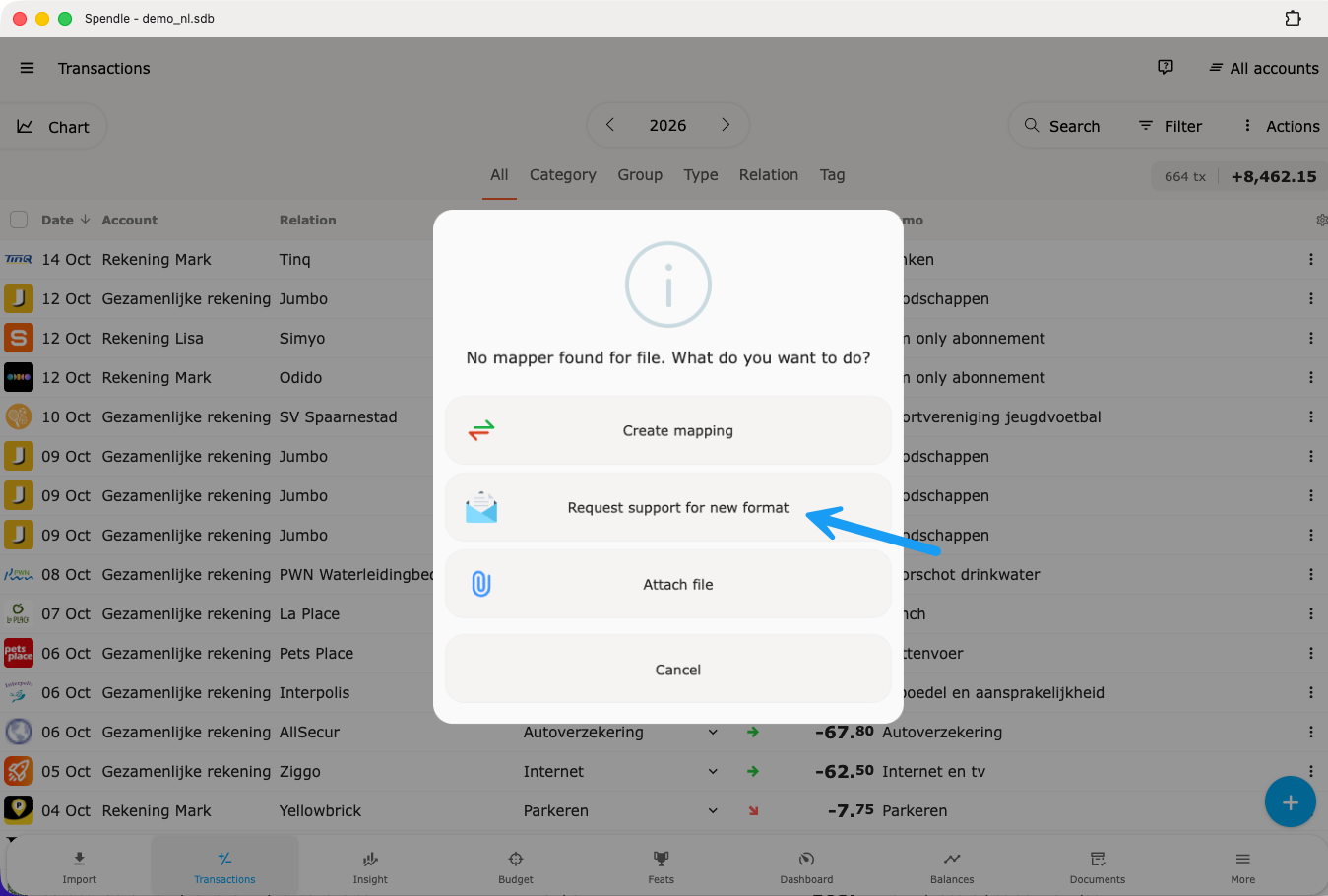
- Choose Request support for new format in the message that appears when the file is not recognised.
- Enter which bank or program the file is from and click Copy. Spendle puts an e-mail text on your clipboard with the column names and a few lines from your file, with letters replaced by x and digits by 9. This shows the format, but not the content.
- Click Open a prefilled e-mail. If that link does not work, create a new e-mail to info@spendle.com with the subject Request to support new format and paste the text into the message.
- Send the e-mail. It is not sent automatically.
Do not send the whole file: it contains your transactions.
Another option is a PSD2 connection, which retrieves transactions directly from your bank.
Preventing duplicate transactions
Section titled “Preventing duplicate transactions”Duplicates are blocked automatically during import. When combining a CSV import and a PSD2 connection on the same account, a duplicate may occasionally go undetected — it is advisable to use one source per account or to avoid overlapping periods. Afterwards, duplicates can be tracked down using the Duplicates filter on the Transactions tab.