Custom bank format
When Spendle does not automatically recognise a transaction file, a file definition can be added manually. The definition is saved, so future files in the same format are recognised automatically.
How it works
Section titled “How it works”-
Go to the Import tab and upload your file (or drag it into the application).
-
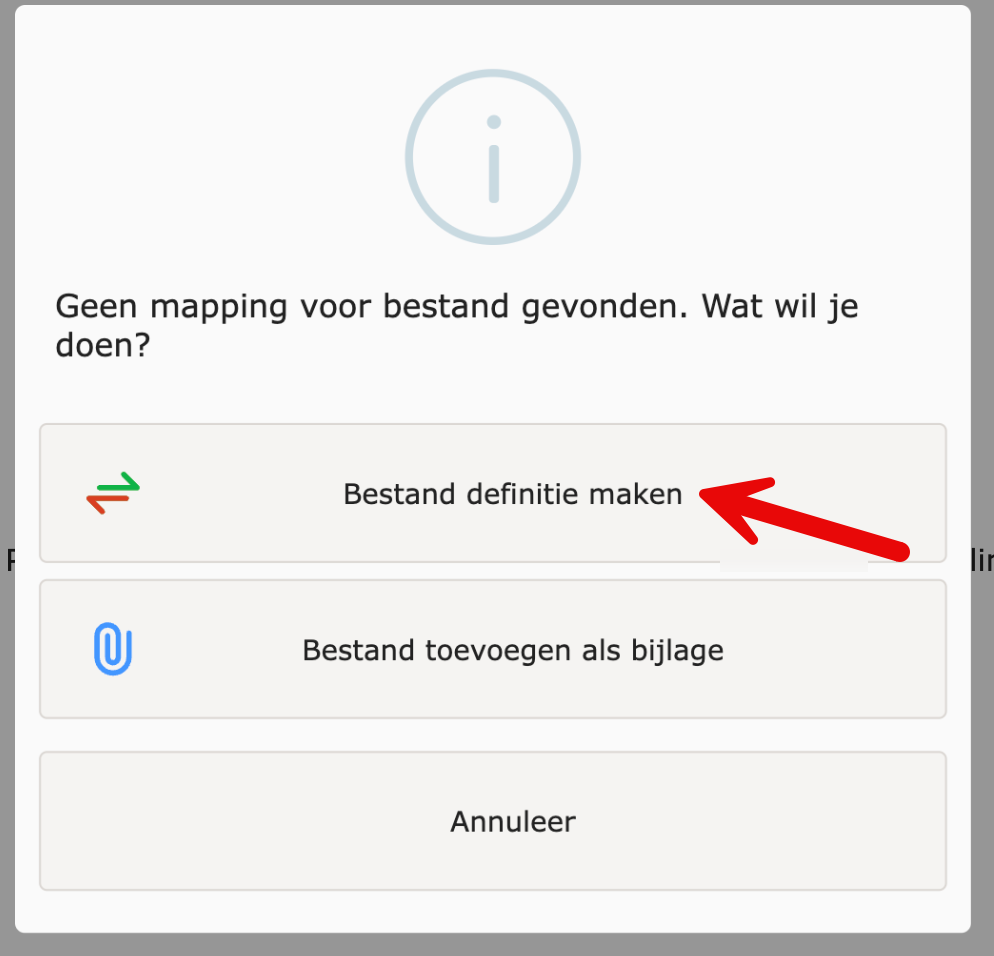
Click Create mapping when Spendle indicates the file is not recognised.
-
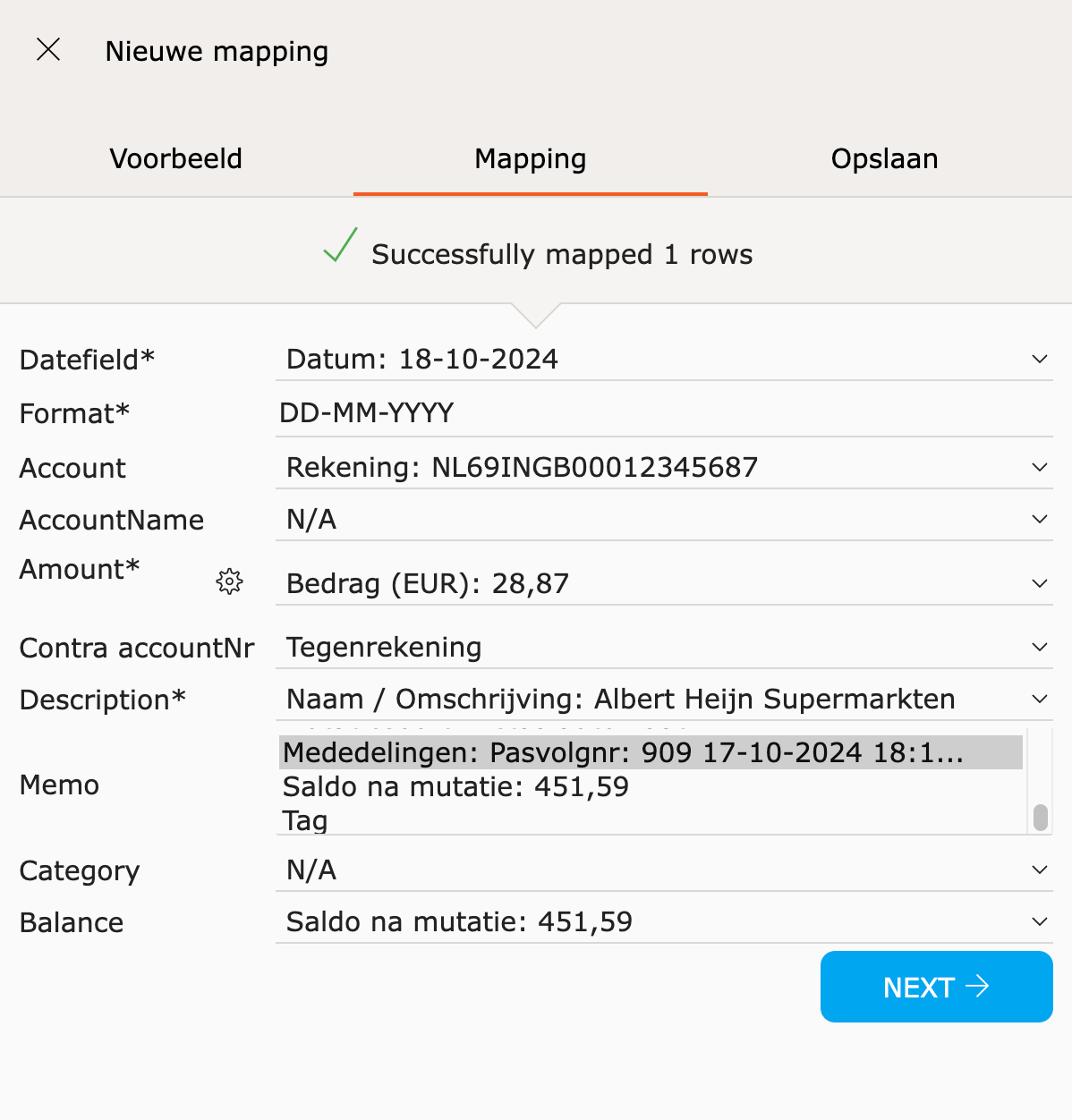
Map the columns. Indicate which column corresponds to date, description, amount, counter account, etc.
-
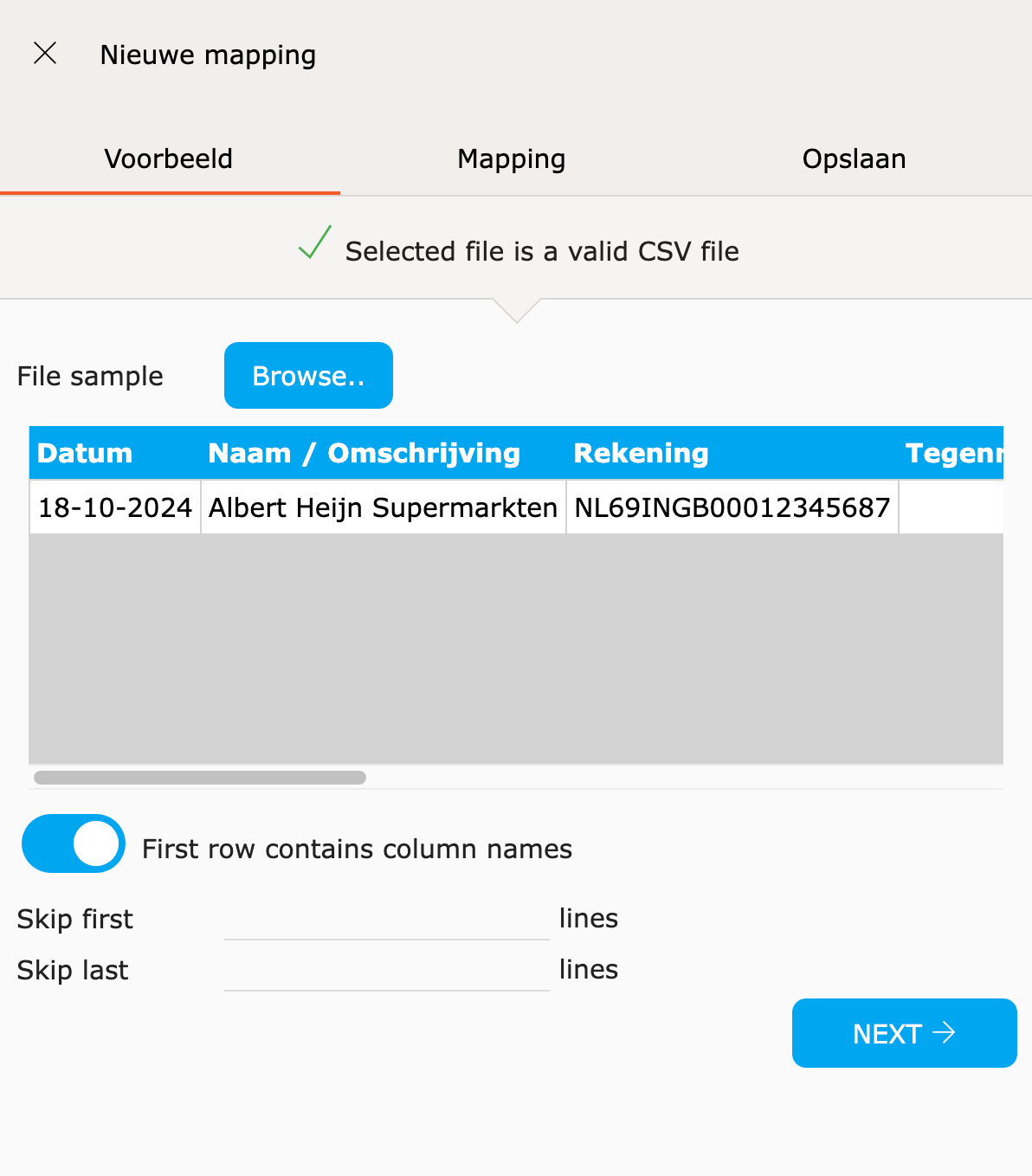
Check the sample transactions at the bottom.
-
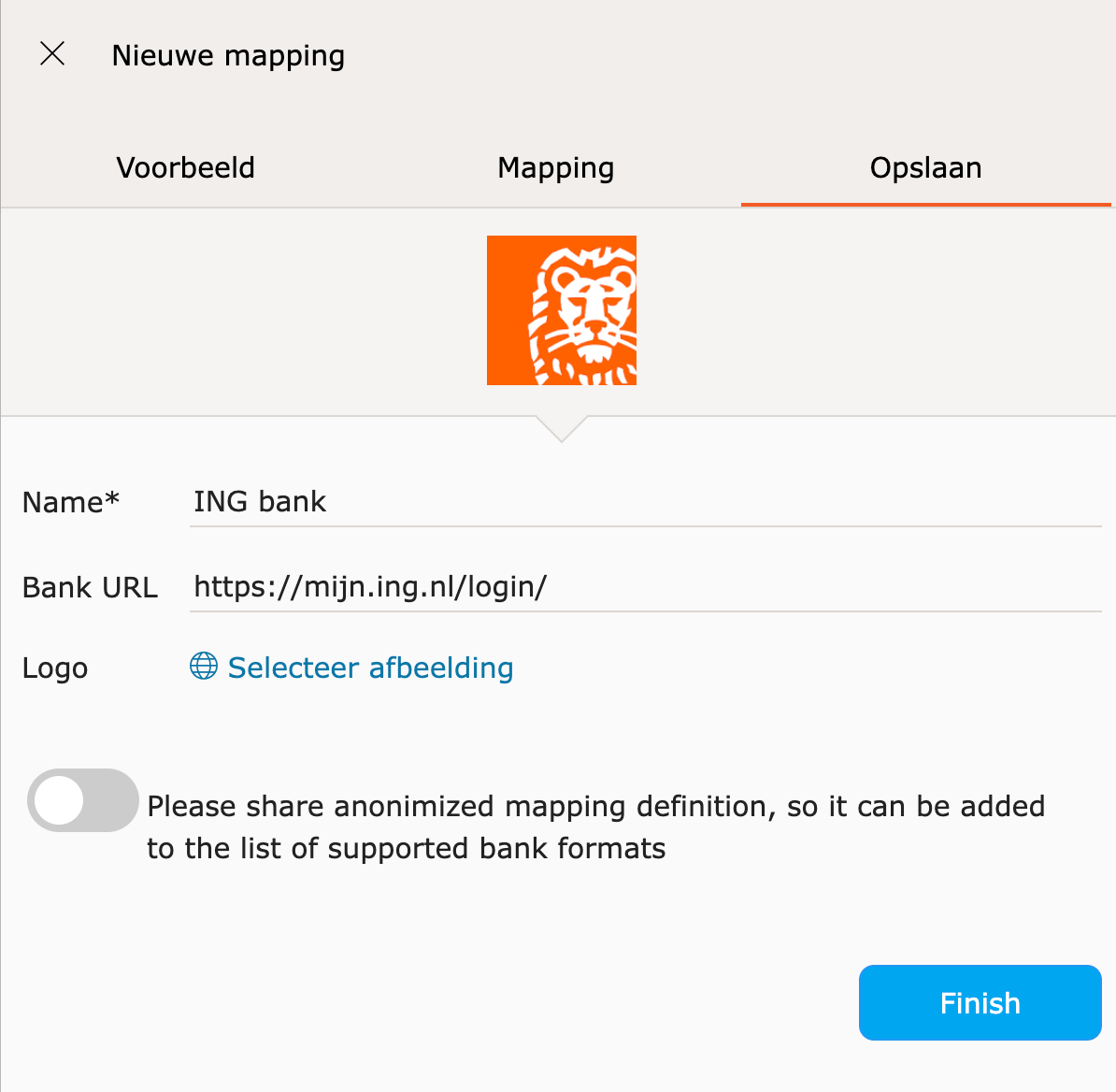
Save the definition. Future files in the same format will be recognised automatically from now on.
Additional settings
Section titled “Additional settings”- Date format — conversion is done via Moment.js tokens
(for example
DD-MM-YYYYorYYYY/MM/DD). - Amount in separate debit/credit columns — use the gear icon next to the Amount field to specify that debit and credit are in two separate columns.
- No account number in the file — leave the Account field empty. During import, Spendle will ask which account applies.