

Balance check
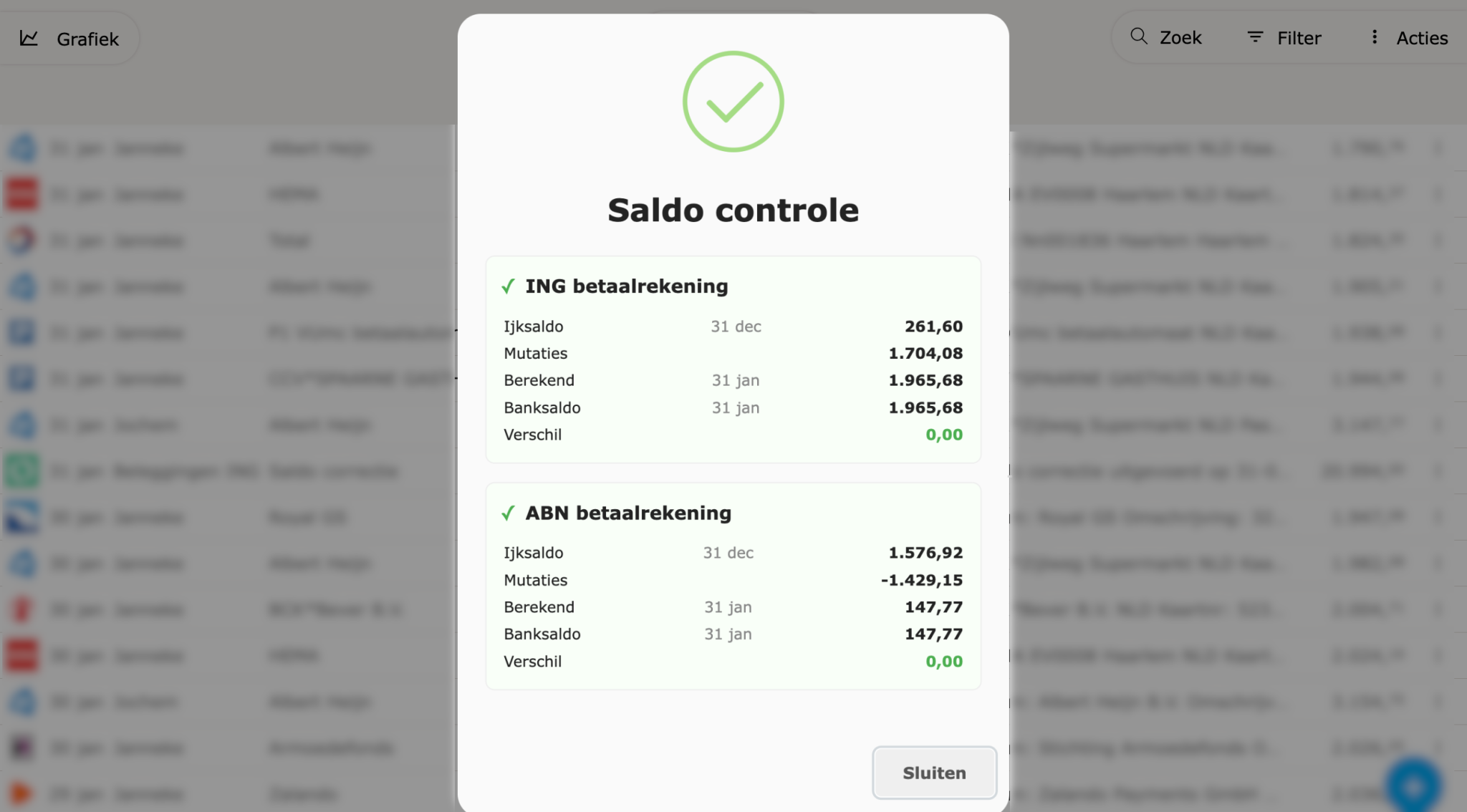
The automatic balance check can be configured per account so that Spendle checks after every PSD2 sync whether the calculated balance matches the bank balance. This makes missing or duplicate transactions visible quickly.

Why use the balance check?
Section titled “Why use the balance check?”When importing transactions (PSD2 or CSV) it can happen that:
- Transactions are imported twice.
- Transactions are missing due to an interrupted sync.
- Manually added transactions contain errors.
The balance check compares the calculated balance (based on the reference balance and transactions) with the bank balance provided by the bank. A discrepancy triggers a notification.
Booking date vs. transaction date
Section titled “Booking date vs. transaction date”Banks often supply the booking date rather than the transaction date, which can cause small differences:
- A card payment on 31 December may be booked by the bank on 2 January.
- Weekend transactions are often processed on Monday.
- International payments can be delayed by several days.
Small differences (a few euros) around month-end transitions are normal. Spendle automatically ignores differences smaller than €0.01.
Setting up the balance check
Section titled “Setting up the balance check”-
Open the Balance tab and click the account.
-
Scroll to the PSD2 settings and turn Check balance on sync on. Spendle shows what will happen: the reference balance is set to the calculated balance of 31 December of last year, and Auto update balance is turned off.
-
Click Enable to confirm.
-
Save the account.
Auto update balance is turned off because continuously overwriting the reference balance means by definition no discrepancy can ever be detected.
When there is a discrepancy: options
Section titled “When there is a discrepancy: options”Adjust the reference date
Section titled “Adjust the reference date”If Spendle was started recently or the account was added recently, the reference date may not be correct. Adjust it to a date for which the balance is known to be correct.
Apply a balance correction
Section titled “Apply a balance correction”If the discrepancy is caused by a missing or incorrect transaction that cannot be traced, a balance correction can create a correction transaction that eliminates the difference.
Look for duplicates
Section titled “Look for duplicates”Filter transactions on Duplicates or Source duplicates via the filter menu in the Transactions tab and remove duplicate entries.
Check manual transactions
Section titled “Check manual transactions”Filter on manually added transactions and verify that amounts and dates are correct.
View the balance report
Section titled “View the balance report”Open More > Reports > Assets > Balance check for:
- Start balance based on the reference date.
- All income and expenses.
- Calculated end balance vs. bank balance.
- Difference per account.
Click an account in the report to open the account details directly.
Use the gap finder
Section titled “Use the gap finder”The gap finder shows periods without transactions. Open the account, click the action menu (three dots) and choose Gap finder. The gap finder shows the five largest gaps from the reference date. Check whether transactions are missing in those periods.
Manual check
Section titled “Manual check”In addition to the automatic check, a balance check can also be run directly:
- Via Check now next to the balance check setting in the account details.
- Via the account action menu (three dots at the top right) > Balance check.
- Via the Transactions tab > action menu > Recalculate balance. All accounts with the balance check enabled are then recalculated; a discrepancy triggers a notification immediately.