

Featured
Features that often go unnoticed but make a noticeable difference in daily use.
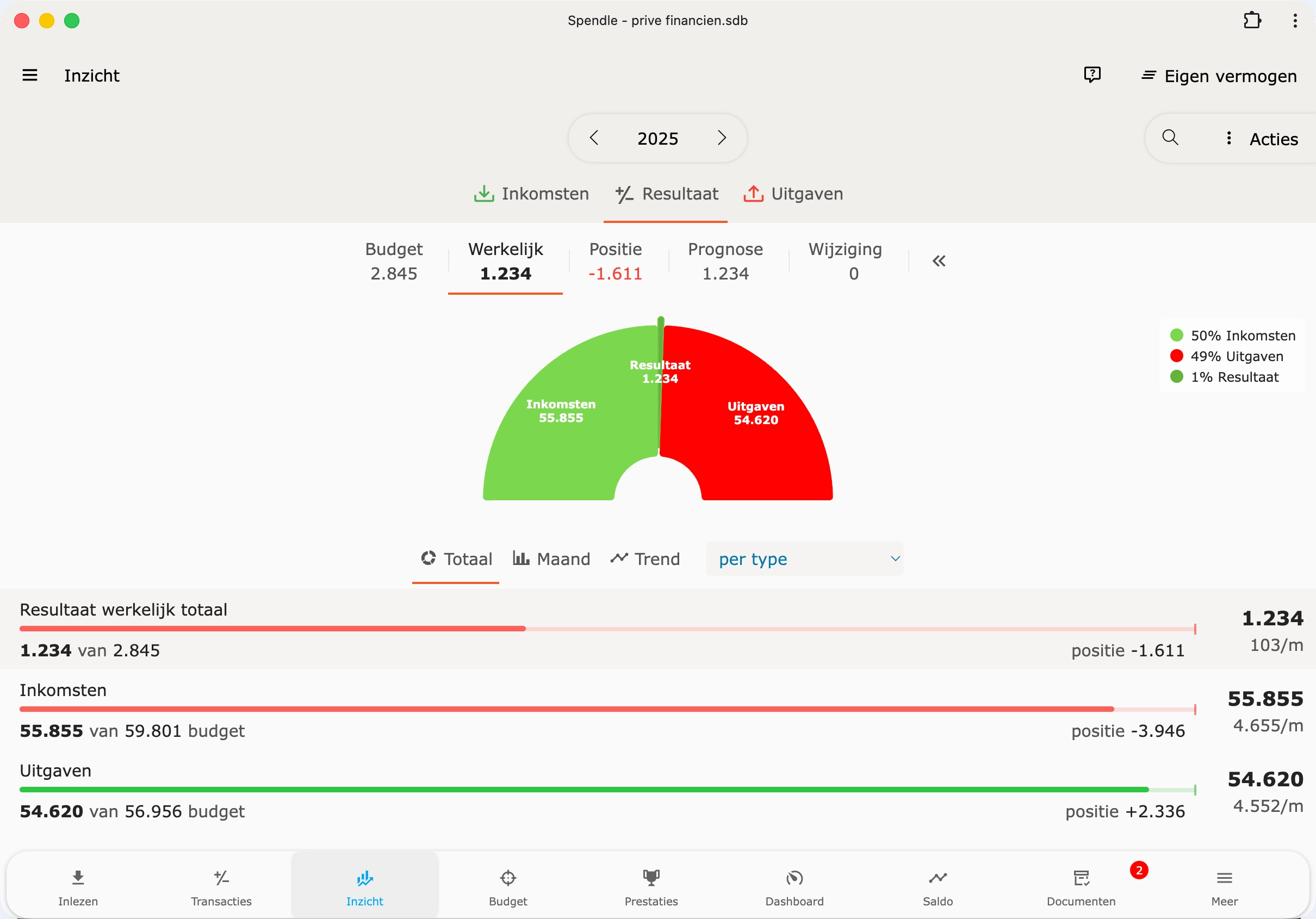
Auto-categorise
Let Spendle categorise transactions automatically based on patterns you define.
Search operators
Advanced search queries in the transaction list.
Running balance
See what the balance was at the moment of each transaction.
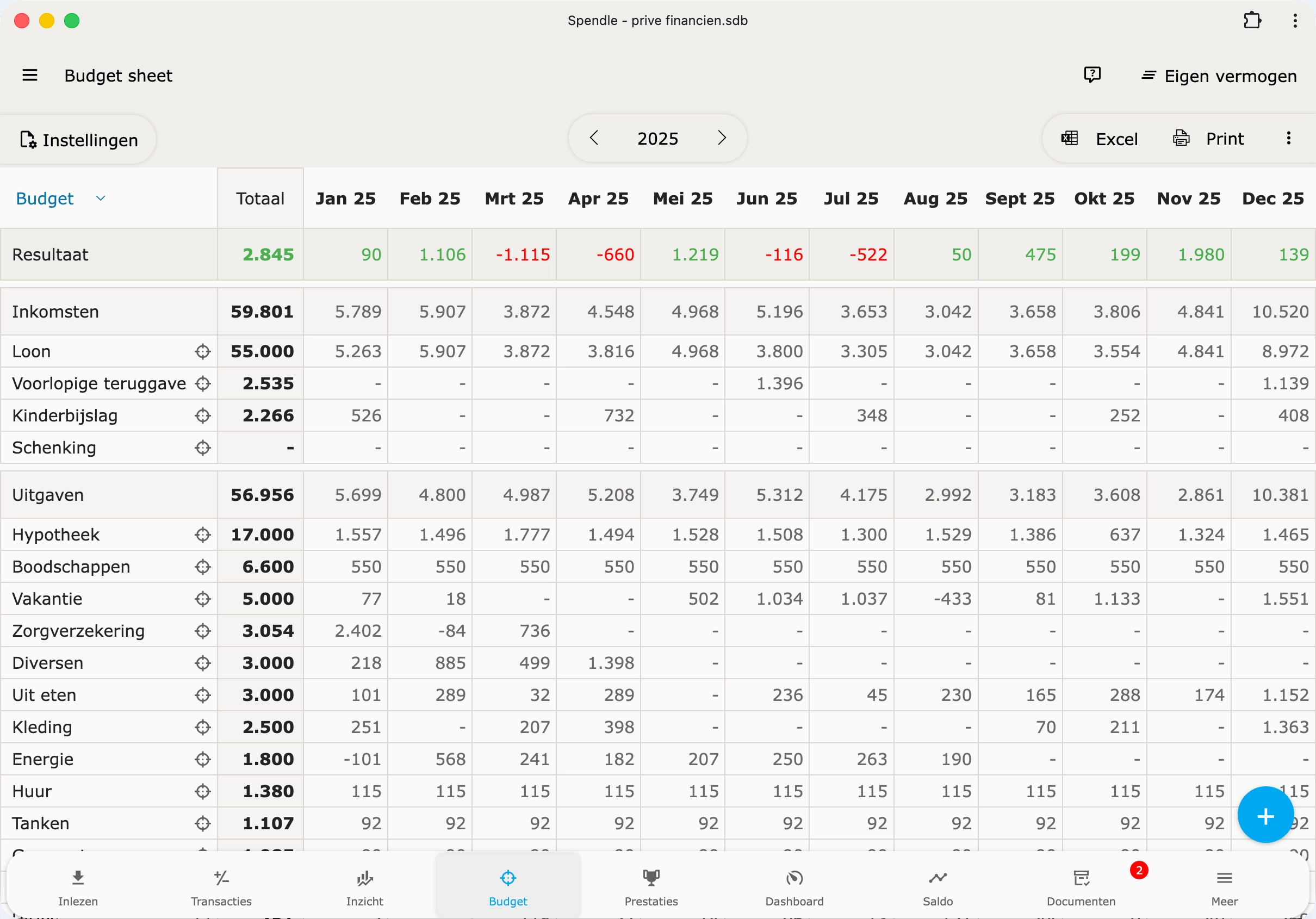
Budget wizard
Generate or update your budget for a year, based on a previous budget or your actual patterns.
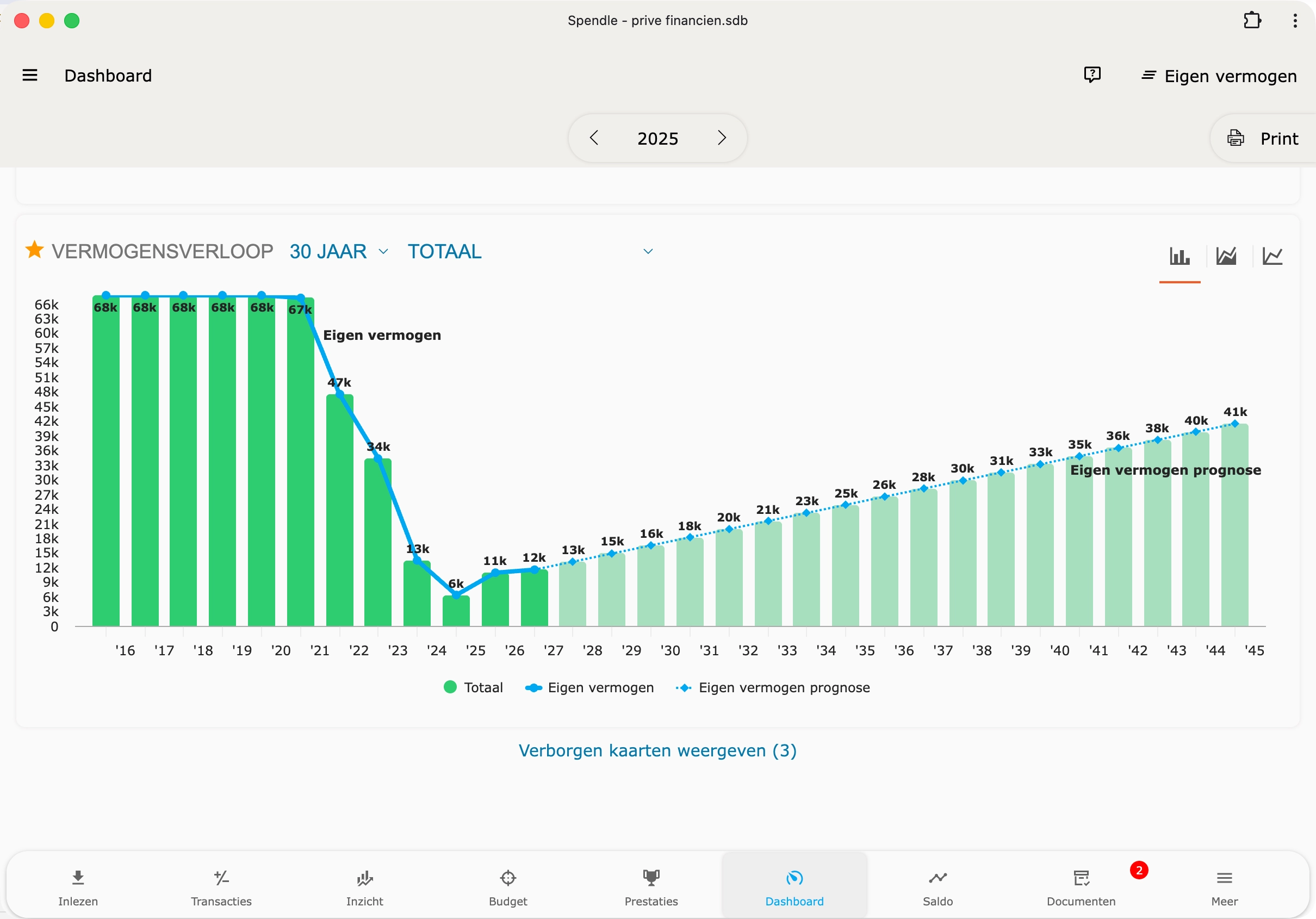
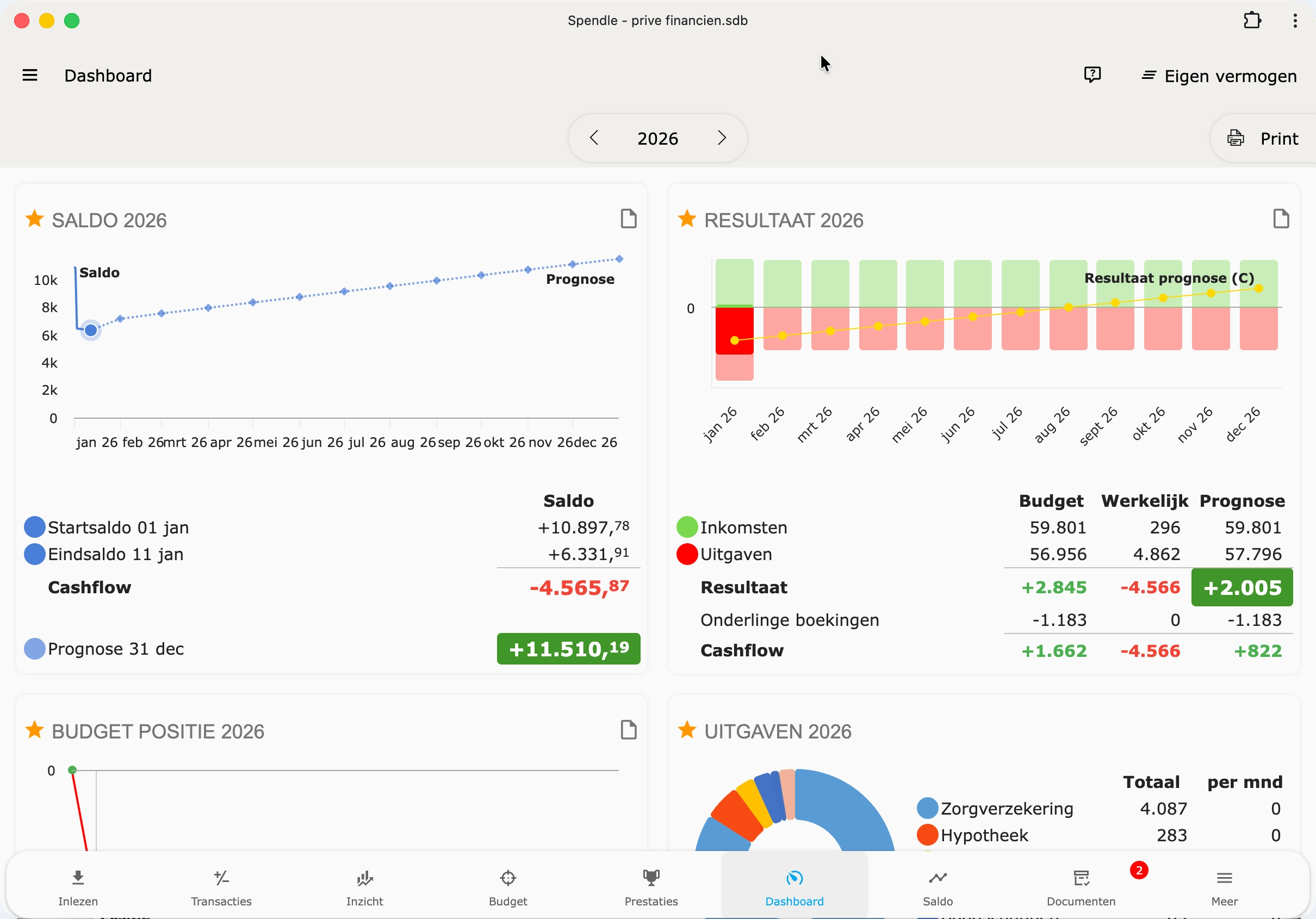
Cashflow on the dashboard
The cashflow chart shows your monthly flows at a glance.
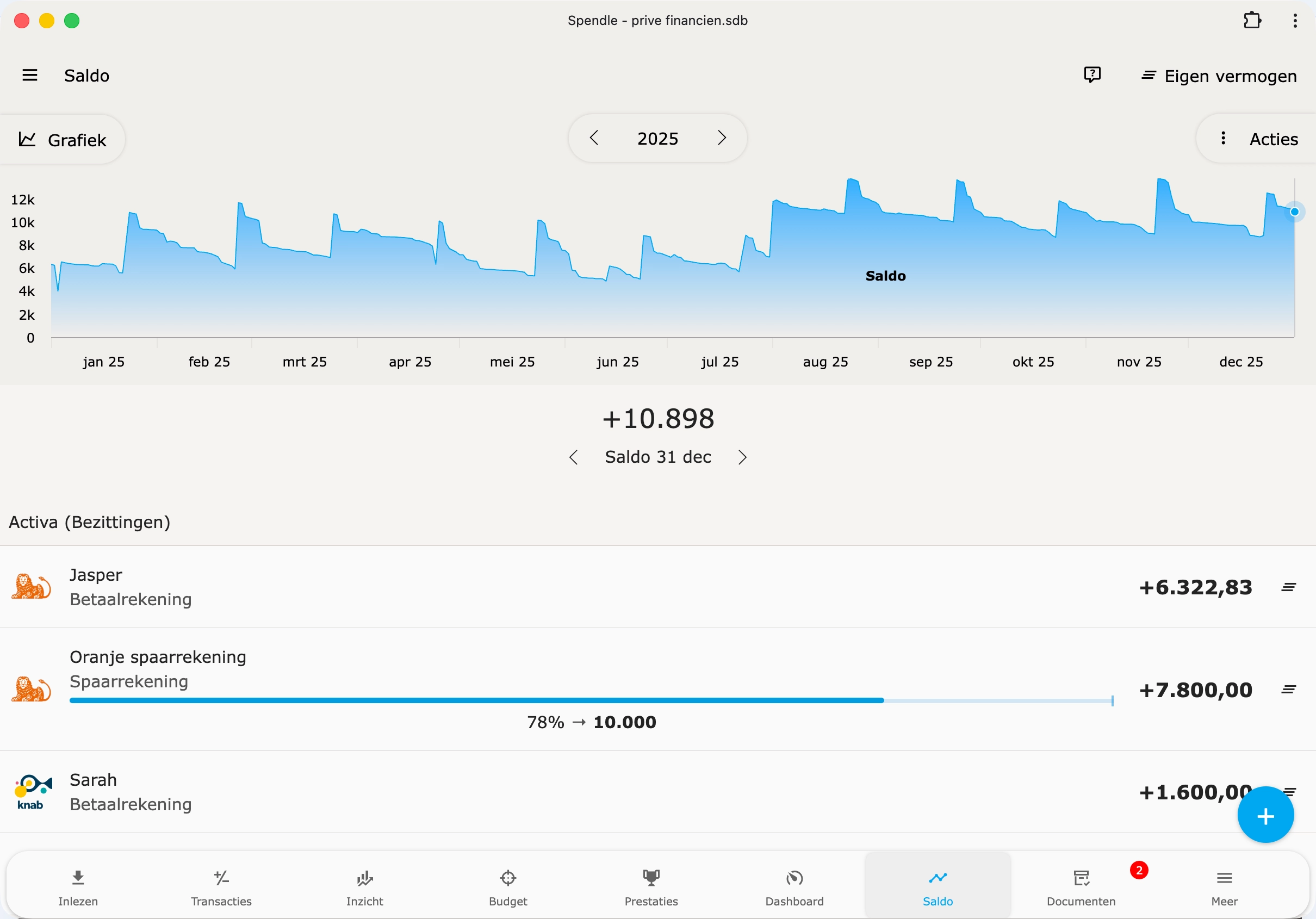
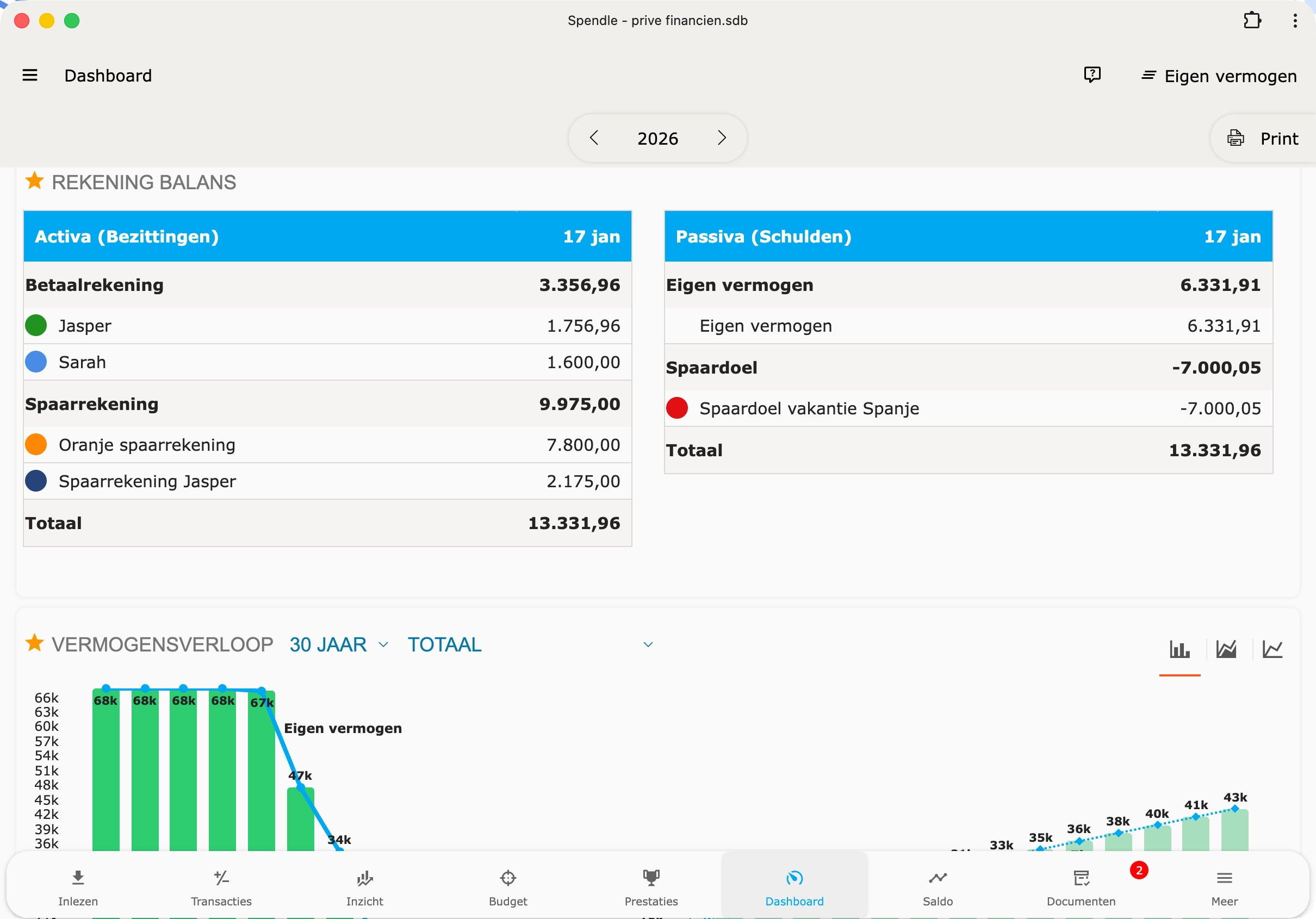
Depreciating assets
Depreciate large purchases (car, bicycle, electronics) step by step in Spendle.
Editing multiple transactions at once
Section titled “Editing multiple transactions at once”In the Transactions list, multiple transactions can be selected and edited in one go — useful for bulk categorising, deleting or exporting.
-
Click the logo circle to the left of a transaction. The checkbox column appears and the row you clicked is immediately checked.
-
Check additional transactions in the now-visible checkbox column. Or use Select all in the action menu (⋮ at the top right).
-
Open the action menu (⋮ at the top right) and choose an action.
Which actions are available?
Section titled “Which actions are available?”The ⋮ menu has these actions for a selection:
- Assign category — assign the transactions to one category.
- Assign — change category, relation, tag, annotation or counter-account at once, including clearing per field.
- Delete — delete the selection.
- Sum — show the total amount of the selection.
- Re-categorize — run the selection through the action rules again.
- Print, Report and Excel export also work on the selection.
Action on all filtered transactions
Section titled “Action on all filtered transactions”Assign category and Assign appear greyed out until at least one transaction is checked, but they are still clickable. Without a selection, the action applies to all transactions in the current filter — useful for clearing the category of all visible transactions in one go.
Draggable detail panels
Section titled “Draggable detail panels”On desktop, pop-up panels are draggable. By grabbing and dragging the title bar of a detail panel (transaction details, relation details, category details or the category picker), the panel can be positioned freely on screen. It returns to the centre when closed or when the page size changes.