

Remove duplicate transactions
Duplicate transactions can appear after a re-import or a mix of PSD2 and file-based import. Removing them is straightforward.
How it works
Section titled “How it works”-
Open the Transactions tab and click the filter icon.
-
Select Potential duplicates. Spendle shows all pairs that look suspiciously similar.
-
Go through the pairs. Click a duplicate entry and check the description — are they genuinely duplicates, or two separate purchases with the same amount and date?
-
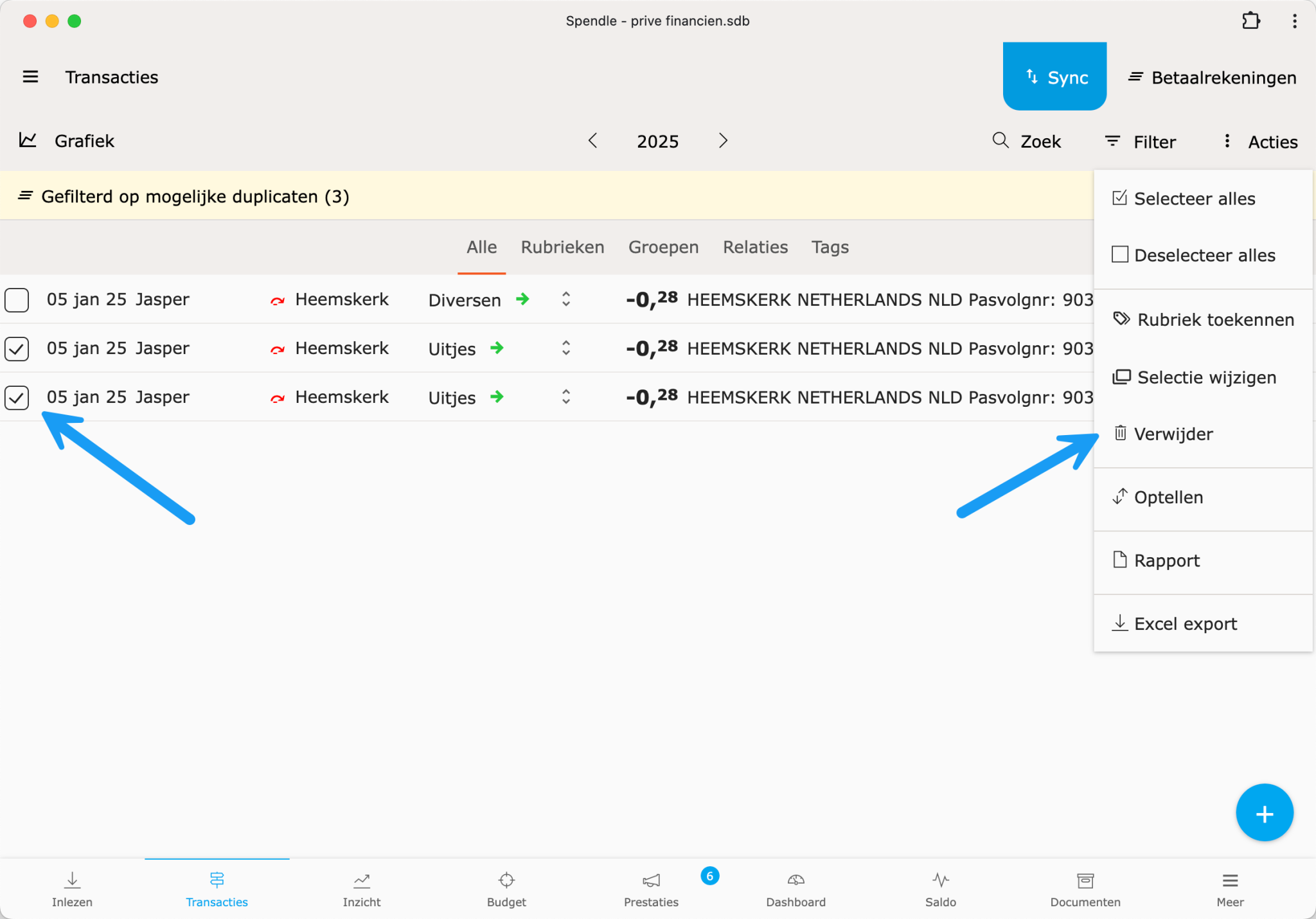
Delete the duplicate entry. Click Delete in the detail panel. Spendle recalculates the balance immediately.
Bulk deletion
Section titled “Bulk deletion”If you are confident all pairs are genuine duplicates, click the logo circle to the left of the first duplicate (the checkbox column appears), select all duplicates (for example the most recent of each pair) and choose Delete in the action menu (⋮ top right).
Prevention
Section titled “Prevention”After cleaning up: configure fuzzy duplicate detection properly and use either PSD2 or CSV for a given account — not both.